Geo-Restriction on Video Content
The Geo-Restriction feature limits access to your video content, ensuring that it can only be viewed within specific geographical areas you've selected.
Geo-restrictions are based on country groups: lists of countries allowed to watch your content. You can apply a country group to a whole show, to a single video, or to a program in the EPG.
1. Set up country groups
Go to Settings → Country Groups. The page lists your country groups, and marks the default one with DEFAULT.
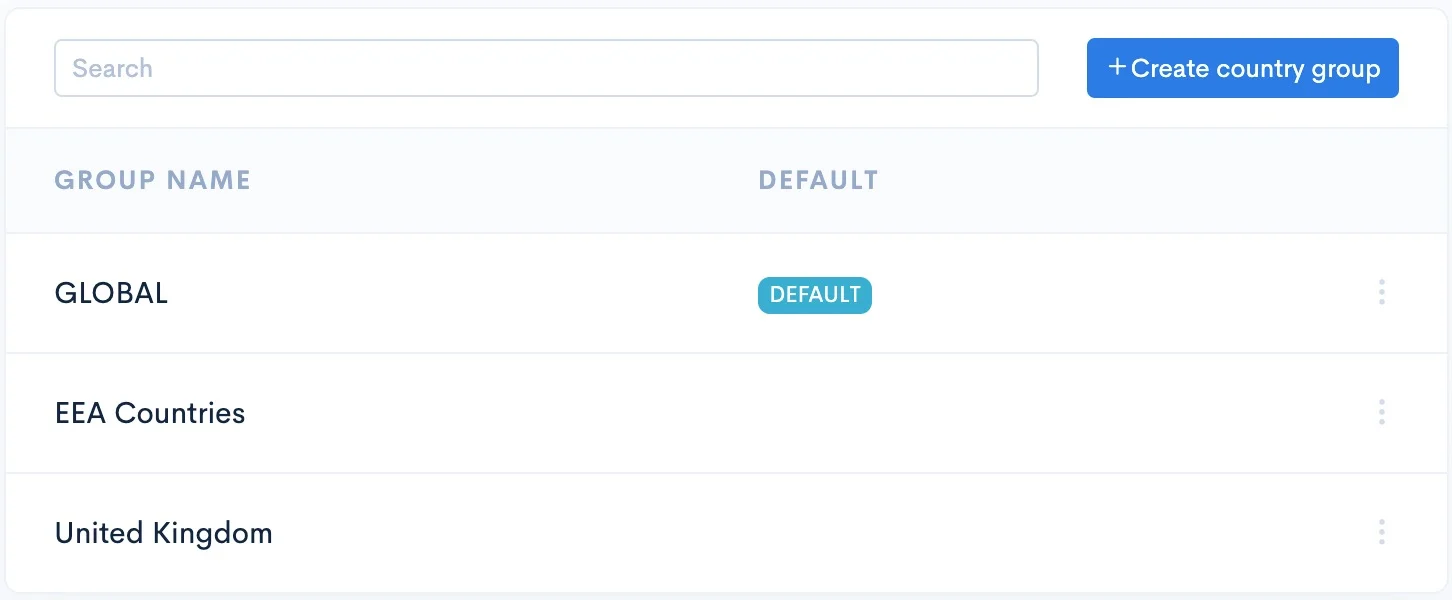
Create a country group
- Click Create country group in the top right corner.
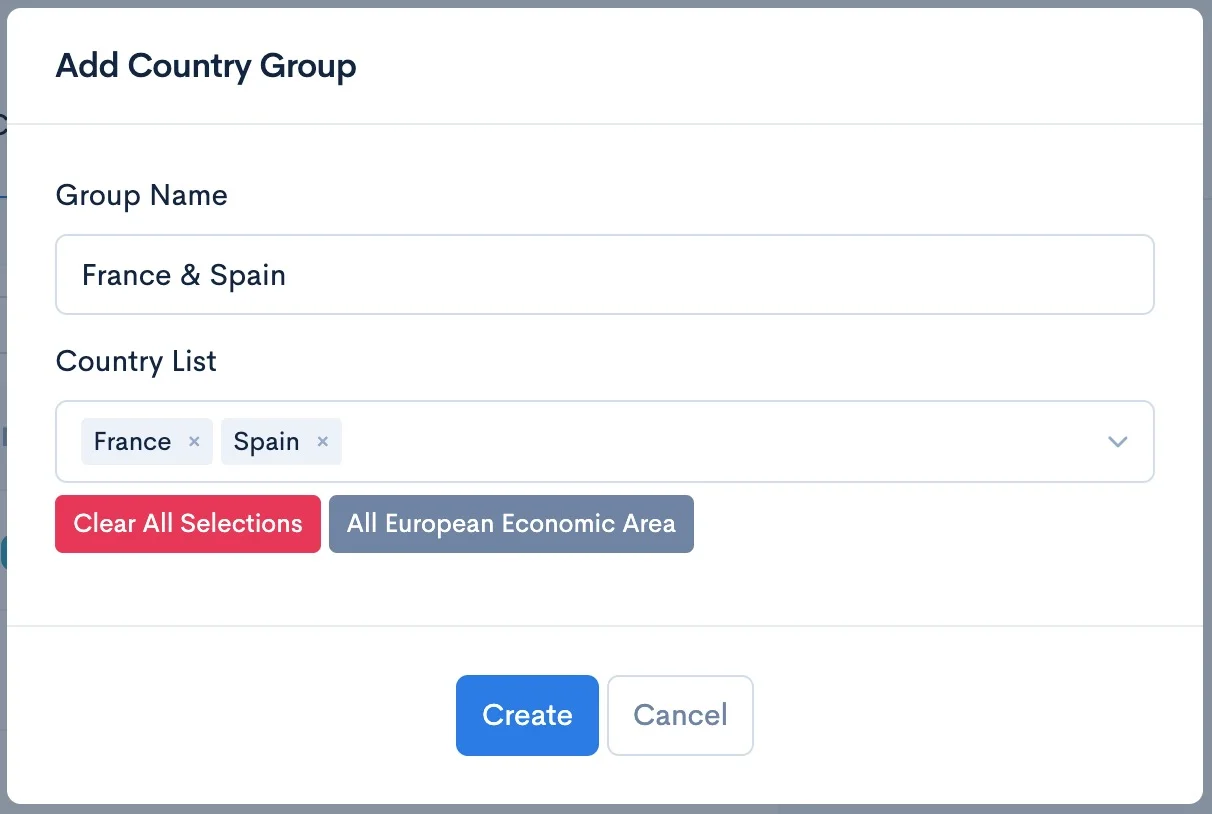
- Enter a Group Name.
- In Country List, search for and add the countries that should have access. To add all the countries of the European Economic Area at once, click All European Economic Area. To start over, click Clear All Selections.
- Click Create.
For example, if you add France and Spain to the list, only viewers in these two countries can watch the content. Viewers from other countries are blocked.
Edit or delete a country group
Click the ⋮ menu on the group's row:
- Edit Group: change the name or the countries, then click Save.
- Delete Group: remove the group.
Set a default country group (optional)
To automatically apply a country group to new shows and videos, click the ⋮ menu next to the group and select Set as Default.
This applies only to new content. Existing shows and videos keep their current restriction.
2. Apply a country group to a show
- Go to Shows and click the show name to open its settings.
- In Country Group Restriction, select the country group.
- Click Save changes.
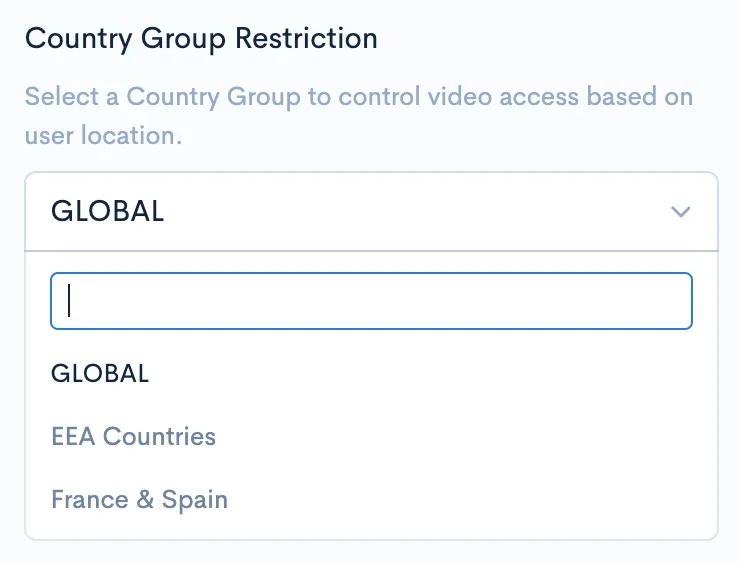
All videos in the show that use the default restriction are updated with the new restriction.
3. Apply a country group to a single video
A video uses its show's restriction by default. To restrict a single video differently:
- Open the video from the Media Library.
- Next to Country Group Restriction, click Change restriction.
- Select the country group and click Save changes.