Recording Editor
The Recording Editor allows you to preview a live or a recent broadcast stream and create videos by selecting specific time intervals.
The Recording Editor works with publishers that have Recording enabled. Recordings are kept for a limited time (4 days by default), so clip them before they expire. See Adding a Publisher.
Open a recording
- Go to Media Library in the Dejacast dashboard and click Recording editor in the upper-left section of the screen.
- Select the publisher, then select the recording you want to review. Recordings are listed by their start date and time.
- Click Start Editing to load the recording.
Previewing the broadcast
The video player displays the selected recording. Use the skip buttons below the player (±1s, ±5s, ±15s, ±1min, ±5min) to move backward or forward and find the exact moment you want to capture.
To download a still image (JPEG) of the current frame of a live recording, click the camera button next to the skip buttons.
Marking segments
To mark a clip:
- Move the video to the point where the clip should start.
- Click Mark Start.
- Let the video play, or move to the point where the clip should end.
- Click Mark Stop.
The segment appears in the Clips to Extract list on the right. Each segment must be at least 3 seconds long, and its end must come after its start.
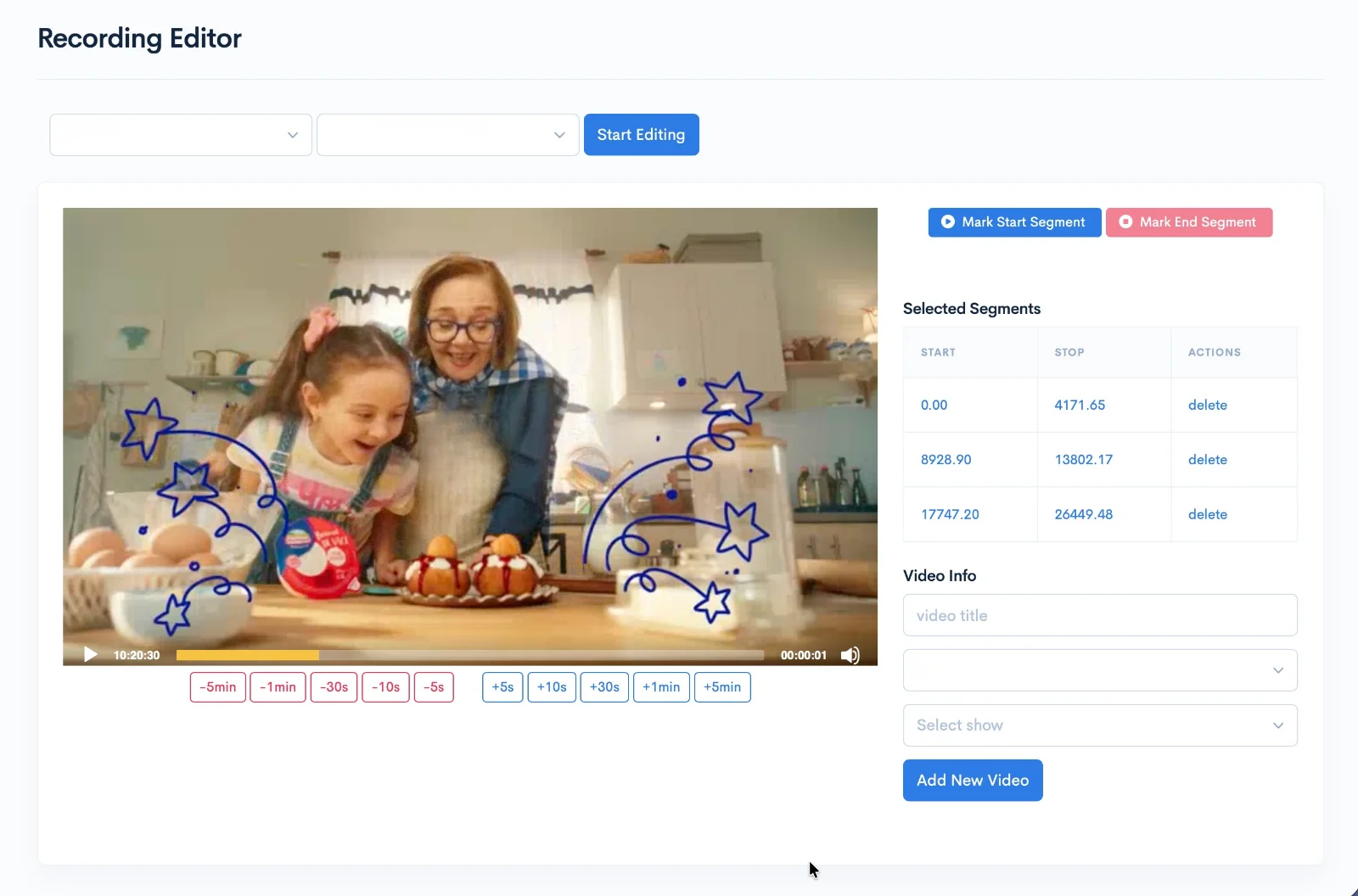
You can mark multiple segments in the same session. They are joined into one video, in order. This is useful to assemble a clean video while removing unwanted moments, for example to skip the ad breaks of a live broadcast.
Creating the video
Once your segments are marked, fill in the Video Info:
- Enter a video title.
- Select the publisher the video will belong to. By default, this is the publisher of the recording, but you can post the clip under another publisher.
- Select the show.
- Click Add New Video.
The video is added to the processing queue and appears in the Media Library when it's ready.
Editing the segments of an existing clip
You can change the segments of a video created in the Recording Editor:
- Open the video in the Media Library and click Edit the recording intervals of the video.
- Click Start editing video segments.
- Add or change segments, then click Edit Video Segments to regenerate the video.
To leave without changes, click Cancel edit segments.
Cutting an uploaded video
You can also cut a new video out of a video you uploaded. Open the video in the Media Library and click Cut to New Video. The editor opens with that video, and you can mark segments and create a new video as described above.