Default Custom Parameters
These custom parameters allow you to extend your content's default metadata.
If you need to apply business-specific metadata to your videos, you can define custom metadata key-value pairs, known as default custom parameters. Setting these parameters provides several benefits:
- Automated Metadata Addition: Custom parameters are automatically added to all new videos uploaded through your Dejacast dashboard.
- Publisher-Specific Parameters: You can set unique custom parameters for each publisher you manage.
- Consistency: Ensures consistent spelling and capitalization of custom parameters.
- Business-Specific Metadata: Allows for the inclusion of user-generated, business-specific custom parameters.
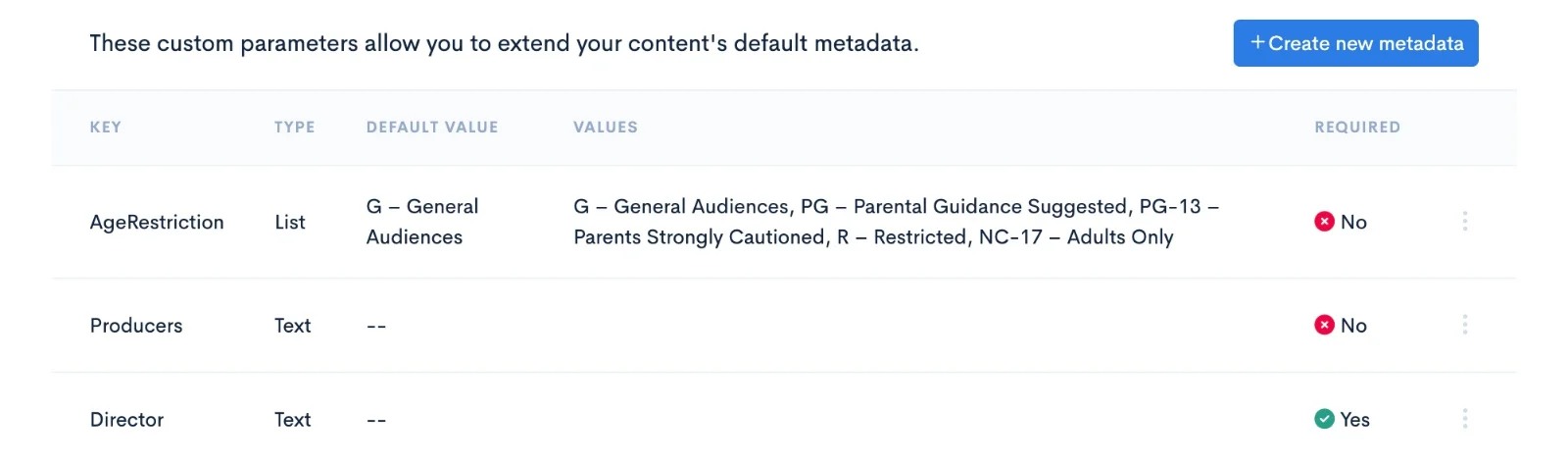
Create Default Custom Parameters
To define default custom parameters for a publisher, follow these steps:
- Navigate to Publishers -> All Publishers.
- Select the Publisher for which you want to manage custom parameters.
- Open the Custom metadata tab and click Create new metadata.
- Choose a Type: List of pre-defined options or Empty text field.
- Choose the Visibility:
- Public: the metadata is displayed on your OTT platforms, on the pages of the shows and videos it belongs to.
- Private: the metadata is for internal use only and is not displayed on your OTT platforms.
- Choose whether the new custom parameter is Required or not.
- Enter the Key name.
- Values:
- If you selected List of pre-defined options, click within the Values text field to add a value. To add more value options, click + Add. When using this option, the first option you add will be the default value. If you leave the first option blank, Select value is displayed as placeholder text on the video details page in your Dejacast dashboard.
- If you selected Empty text field, enter the Default Value (optional). Leave this text box blank if you do not want to set a default value.
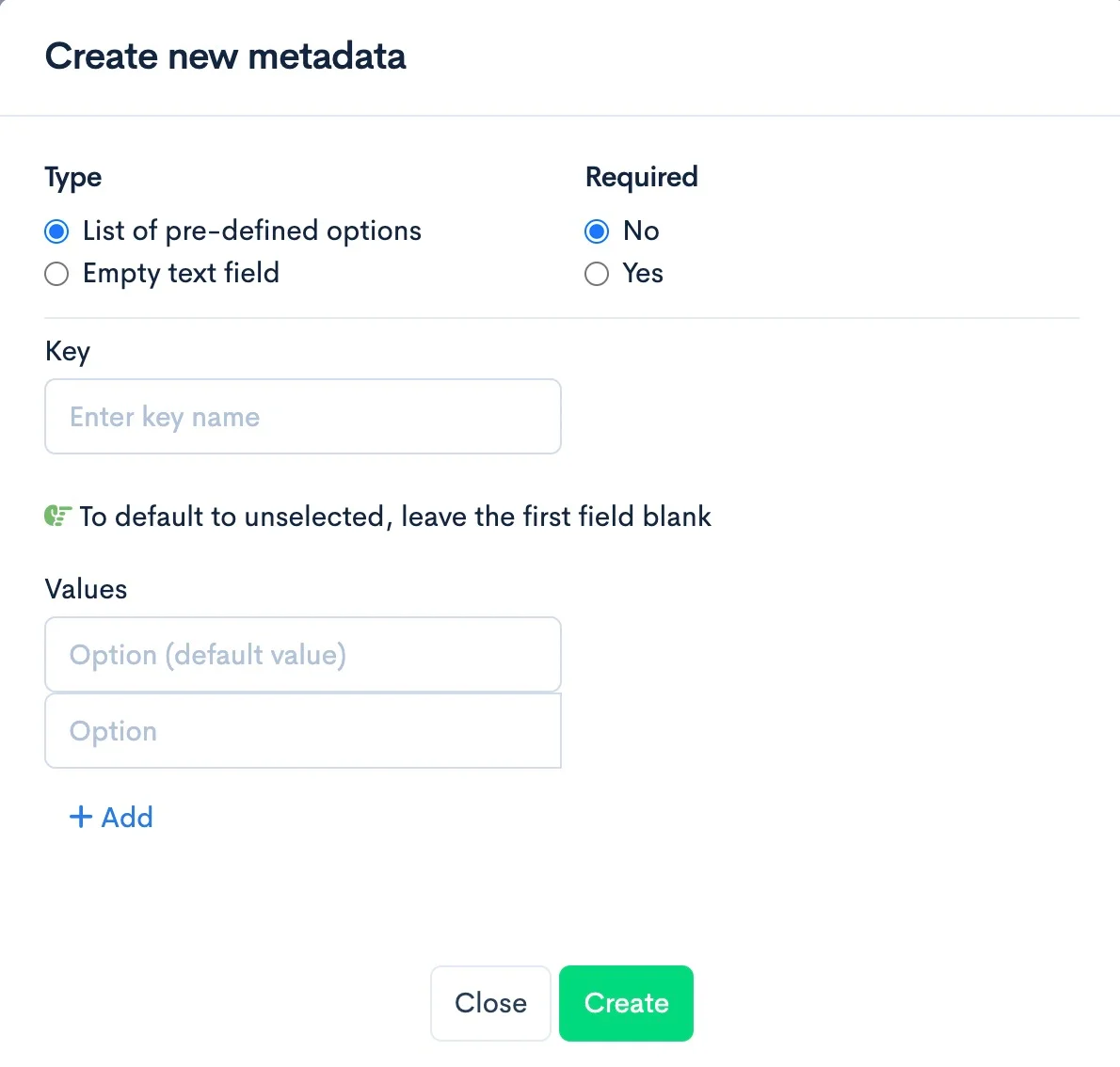
- Click Create. The new custom parameter key and its values appear in the table.
- Repeat the steps above to add multiple custom parameters.
All new videos for this publisher will have your defined custom parameters applied.
Override the default values for a show or a video
The values you set here are defaults. You can change them for a whole show, or for a single video:
- Show: open the show from Shows, and in the Custom Metadata section click Metadata settings. Videos in the show inherit these values.
- Video: open the video from the Media Library and click Metadata settings. The panel shows which values are inherited from the show, and you can reset a field to the default value set in the publisher or show metadata.
Edit Default Custom Parameters
Use the following steps to edit existing default custom parameters:
- Navigate to Publishers -> All Publishers.
- Select the Publisher for which you want to manage custom parameters.
- Open the Custom metadata tab.
- Locate the row of a custom parameter and click the 3 vertical dots on the right.
- Click Edit. The Edit metadata panel appears.
- Make the necessary changes to the fields you want to update.
- Click Save. The custom parameter key and its new values appear in the table.
Delete Default Custom Parameters
In situations where you no longer need a default custom parameter or you need to make room for additional default custom parameters, use the following steps to delete a default custom parameter:
- Navigate to Publishers -> All Publishers.
- Select the Publisher for which you want to manage custom parameters.
- Open the Custom metadata tab.
- Locate the row of a custom parameter and click the 3 vertical dots on the right.
- Click Delete key and confirm.
Deleting a default custom parameter is permanent.